Java Fundamentals

JVM and Conditional Statements

Java Virtual Machine, compilation, execution, and control flow

Summary of the last lecture

  • We began to see how to use Eclipse
  • We programmed our first Java classes
How Java handles the produced code execution?

Java environment: the JVM

  • What is a Virtual Machine?
    A virtual machine is a software engine, that can handle the execution of instructions, like an operating system, to ensure the program global execution.
    It is like a (virtual) independent operating system, running on the real operating system

Java environment: the JVM (2)

Pro and cons of a Virtual Machine system
  • Pro : Code portability the main advantage of using a virtual machine system, is to be portable. When you write your code, you don't have to worry about OS specific operations: the JVM makes the abstraction, and you can focus on your business code.
  • Con : Performance issues the major disadvantage is that the JVM adds a layer to perform the translation of the java code in the OS native instructions. You can have some performance problems in some specific cases. ▸ less sensible since Java 1.6

Java environment: the JVM (3)
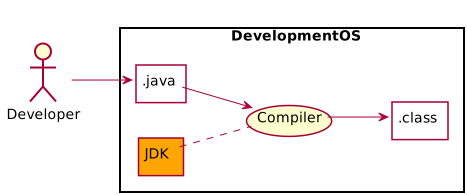
From design to compilation
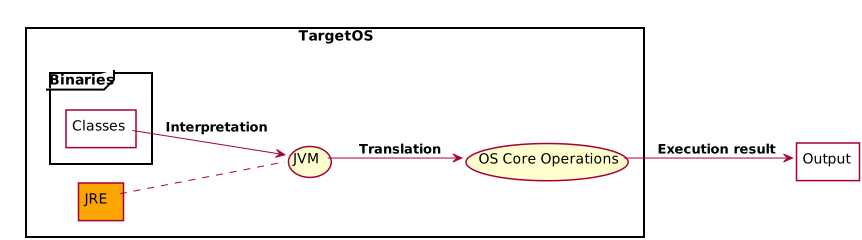
From compiled classes to execution
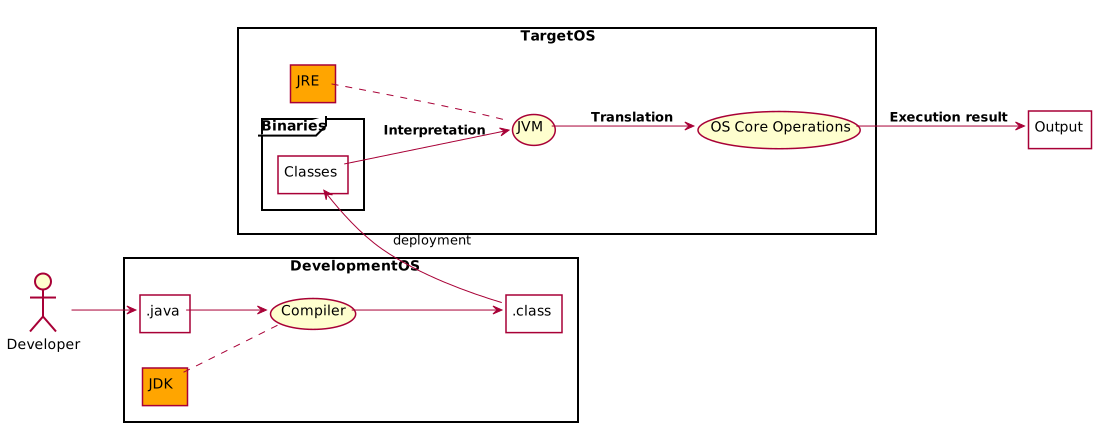
Summary

  • Java files .java are compiled into .class
  • .class files are interpreted by the JVM into native OS operations
  • The JDK allows us to develop and compile java code. The JDK furnishes a lot of integrated tools to help the Java developer
  • The JRE can only run already compiled java code: .class files
  • The JDK contains the JRE, which itself contains the JVM

Compilation and Execution in IntelliJ IDEA (1)

IntelliJ IDEA handles compilation automatically:
  • IntelliJ builds your project automatically as you type
  • Compilation output is located in the out/ folder
  • You can manually trigger a build with Ctrl+F9 (Cmd+F9 on Mac)
  • Behind the scenes, IntelliJ uses javac (Java compiler):
    javac Identity.java

Compilation and Execution in IntelliJ IDEA (2)

IntelliJ project configuration:
  • File > Project Structure to configure SDK and dependencies
  • Project SDK: Choose your Java version (Java 17+ recommended)
  • Language Level: Select Java language features to use
  • Libraries: Add external JAR files if needed
IntelliJ intelligently manages your classpath and build configuration

Compilation and Execution in IntelliJ IDEA (3)

Running and debugging your code:
  • Run: Click the green play button next to your main method, or press Shift+F10
  • Debug: Click the debug icon (bug symbol) or press Shift+F9
  • IntelliJ automatically detects classes with main methods
  • Behind the scenes, it executes the java command:
    java Identity

Your First Executable Program

In order to be executable, your class must have a static main method
Type main and press Tab in IntelliJ - it will auto-complete!
package fr.tbr.exercises;

public class JavaSyntaxDemo {
     private String demoVersion = "1.0_DEV";

     //Constructor
     public JavaSyntaxDemo() {
     }

     public String getDemoVersion(){
        return this.demoVersion;
     }

     public static void main(String[] args){
    	 System.out.println("=> Begin execution");
    	 JavaSyntaxDemo demo = new JavaSyntaxDemo();
    	 System.out.println("Working with version : " + demo.getDemoVersion());
    	 System.out.println("<= Exit");
     }
}
        

Console applications : in and out

  • Getting input from the user :
    Scanner scanner = new Scanner(System.in);
    try { //this is a try-catch block, we will discuss it further
        int num1 = scanner.nextInt();
        System.out.println("Input 1 accepted");
        int num2 = scanner.nextInt();
        System.out.println("Input 2 accepted");
    } catch (InputMismatchException e) {
        System.out.println("Invalid Entry");
    }
                
  • Printing in the console
    
    System.out.println("Say something in the console");
                

Exercise: Bank Account System

  • Initialize programmatically a customer, an account, each of them with concrete values.
  • Perform a withdrawal, and a interests calculation,
  • then display the customer and account values (name and balance in the standard output)

Exercise 2: Bank Account System, user input

In the former exercise, replace the programmatic initialization by a user input

Conditional statements in Java : Tests

Conditional statements in Java : Switches

Enums: Fixed Sets of Constants

An enum (enumeration) defines a fixed set of named constants:

public enum Day {
    MONDAY, TUESDAY, WEDNESDAY, THURSDAY, FRIDAY, SATURDAY, SUNDAY
}

public enum AccountType {
    SAVINGS, CHECKING, INVESTMENT
}

// Usage
Day today = Day.MONDAY;
AccountType type = AccountType.SAVINGS;

Enums with Switch Statements

Enums work perfectly with switch statements:

public enum TrafficLight {
    RED, YELLOW, GREEN
}

public void handleLight(TrafficLight light) {
    switch (light) {
        case RED:
            System.out.println("Stop!");
            break;
        case YELLOW:
            System.out.println("Caution - prepare to stop");
            break;
        case GREEN:
            System.out.println("Go!");
            break;
    }
}
Tip: IDE will warn you if you miss a case in your switch

Switch Expressions (Java 14+)

Modern Java introduced switch expressions with arrow syntax:

Traditional Switch

String result;
switch (day) {
    case MONDAY:
    case FRIDAY:
        result = "Work";
        break;
    case SATURDAY:
    case SUNDAY:
        result = "Weekend";
        break;
    default:
        result = "Midweek";
}

Switch Expression

String result = switch (day) {
    case MONDAY, FRIDAY -> "Work";
    case SATURDAY, SUNDAY -> "Weekend";
    default -> "Midweek";
};
  • No break needed
  • Multiple cases with comma
  • Returns a value directly

Switch Expressions with yield

For complex logic in a case, use yield to return a value:

int numLetters = switch (day) {
    case MONDAY, FRIDAY, SUNDAY -> 6;
    case TUESDAY -> 7;
    case THURSDAY, SATURDAY -> 8;
    case WEDNESDAY -> {
        // Complex logic goes here
        System.out.println("It's Wednesday!");
        yield 9;  // yield returns the value
    }
};
Key difference:

Pattern Matching in Switch (Java 21)

Switch can now match on types, not just values:

// Type pattern matching in switch
String describe(Object obj) {
    return switch (obj) {
        case Integer i -> "Integer: " + i;
        case String s  -> "String of length " + s.length();
        case Double d  -> "Double: " + d;
        case null      -> "It's null!";
        default        -> "Unknown type";
    };
}

// With guards (when clause)
String categorize(Integer num) {
    return switch (num) {
        case Integer n when n < 0  -> "Negative";
        case Integer n when n == 0 -> "Zero";
        case Integer n when n > 0  -> "Positive";
        default -> "Unknown";
    };
}

Switch: Traditional vs Expression

FeatureTraditionalExpression
Returns value No (use variable) Yes (directly)
Break statement Required Not needed
Multiple cases Fall-through Comma-separated
Exhaustiveness Not enforced Must cover all cases
Pattern matching Not supported Supported (Java 21)
Recommendation: Prefer switch expressions for cleaner, safer code!

Enums with Values

Enums can have fields, constructors, and methods:

public enum AccountType {
    SAVINGS(0.02),    // 2% interest
    CHECKING(0.0),    // 0% interest
    INVESTMENT(0.05); // 5% interest

    private final double interestRate;

    AccountType(double rate) {
        this.interestRate = rate;
    }

    public double getInterestRate() {
        return interestRate;
    }
}

// Usage
AccountType type = AccountType.SAVINGS;
double rate = type.getInterestRate();  // 0.02

Debugging: Finding and Fixing Bugs

Debugging is the process of finding and fixing errors in your code.

IntelliJ's debugger is one of the best - let's learn to use it!

Setting Breakpoints

A breakpoint tells the debugger to pause execution at a specific line:

public void calculateInterest(double balance) {
    double rate = 0.05;
    double interest = balance * rate;  // <-- Set breakpoint here
    System.out.println("Interest: " + interest);
}

When execution reaches the breakpoint, the program pauses and you can inspect values.

Debugger Controls

Once paused at a breakpoint, use these controls:

Action Shortcut Description
Step Over F8 Execute current line, move to next
Step Into F7 Enter the method being called
Step Out Shift+F8 Finish current method, return to caller
Resume F9 Continue until next breakpoint

Variables panel: Shows all variable values at current point

Exercise: Debug This Code

The following code has a bug. Use the debugger to find it:

public class BuggyCalculator {
    public static double calculateAverage(int[] numbers) {
        int sum = 0;
        for (int i = 0; i <= numbers.length; i++) {  // Bug here!
            sum += numbers[i];
        }
        return sum / numbers.length;
    }

    public static void main(String[] args) {
        int[] grades = {85, 90, 78, 92, 88};
        double avg = calculateAverage(grades);
        System.out.println("Average: " + avg);
    }
}
  1. Set a breakpoint inside the for loop
  2. Run in debug mode (Shift+F9)
  3. Step through and watch the value of i
  4. What happens when i reaches 5?

Exercise 3: Calculate the perimeter and the area of different figures

Create methods which get the appropriated parameters to calculate area and perimeter of :
And display those results in the standard output

Slide Overview